

Assign & adjust a program
A template becomes a client’s program when you assign it. The assignment is their own copy — tailoring it never touches the template, and never touches anyone else on the same program.
Before you begin
Section titled “Before you begin”- At least one program template (see Build a program), or a plan to build one just for this client.
- An active client to assign it to.
1. Assign the program
Section titled “1. Assign the program”Open the client, go to their Training tab, and choose Assign a program. Pick a template, set the date it starts (Stem shows when it ends), and choose Assign. The template is copied onto the client as their own program. Nothing suitable in your library? Build one from scratch starts an empty program just for them.
To put one template on several clients at once, open it under Training → Programs and choose Assign to clients…, or select clients in your client list and choose Assign program.
2. Read the block
Section titled “2. Read the block”Two views help you orient:
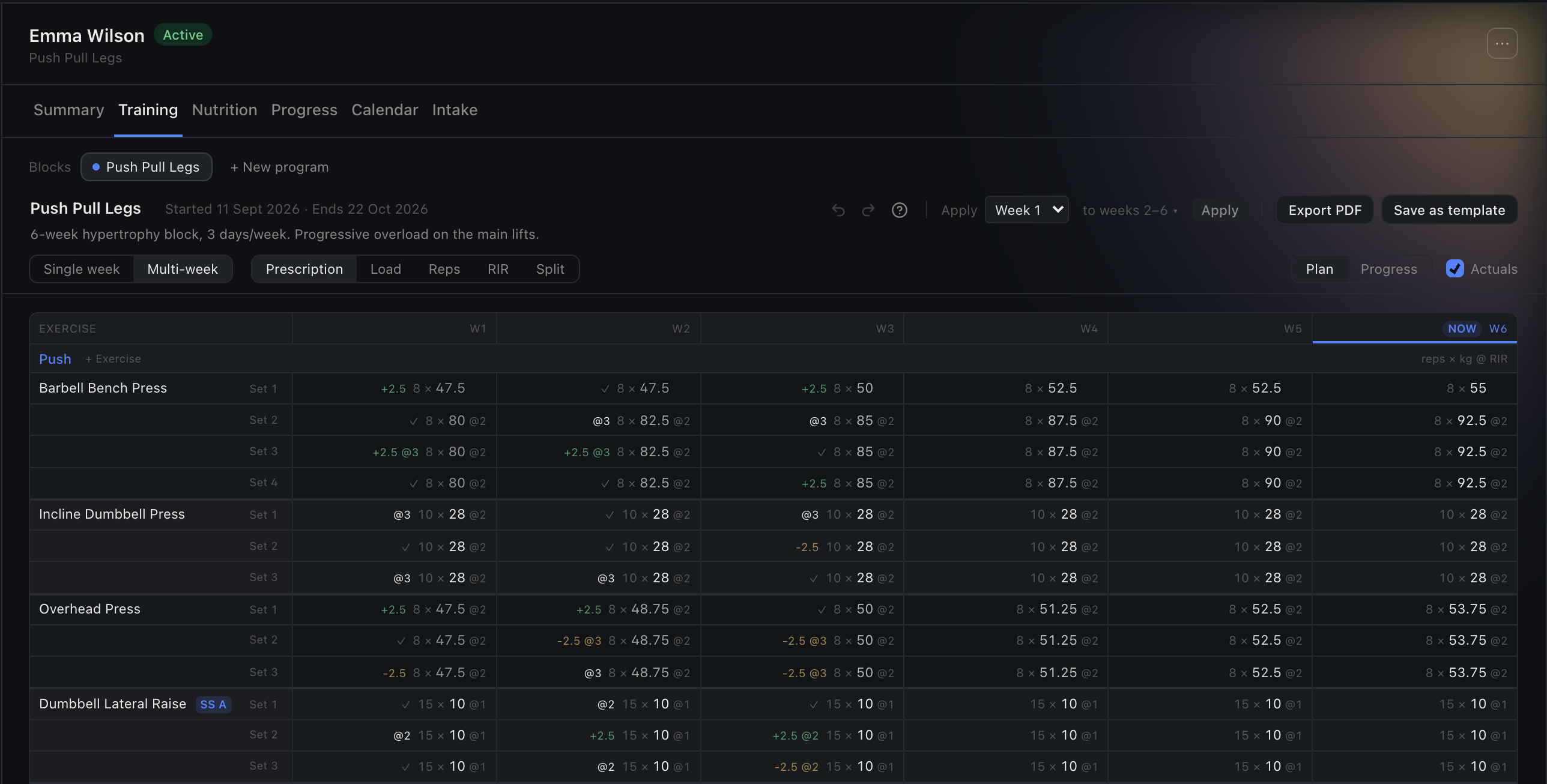
- Multi-week shows the whole program at once. Its lens toggle switches between Plan (the prescription you set) and Progress (what the client has actually lifted, exercise by week). Tick Actuals to show what the client logged on top of the plan in each cell.
- Single week focuses on one week at a time.
In Plan, land on any cell and the Insights strip shows that exercise’s planned-versus-actual history, alongside the load for the week and the session.
3. Adjust it for this client
Section titled “3. Adjust it for this client”Click any cell — in Plan or Single week — to change the sets, reps, load, or effort. Edits save as you go, and they only affect this client’s copy. In Single week you can also add days and exercises, or choose + Week to extend the program. The program’s name and overview (which the client sees) are editable at the top of the tab.
To add a set partway through an exercise — another warm-up at the top, say — choose ⋯ on a set row in Single week, then Insert set above (a blank set) or Duplicate set (a copy straight below). The sets underneath move down; nothing is retyped. In Multi-week, right-click a set’s cell for the same two: they apply to that week and every later week, and a duplicate copies each week’s own set, so the weekly progression is kept. Weeks before the one you clicked are left as they were.
Save as template copies a client’s program into your library — All weeks or Week 1 only, with the option to drop the prescribed weights. Their own program doesn’t change.
4. See planned vs actual
Section titled “4. See planned vs actual”As the client trains, the read-only Actual column in Single week shows what they logged against each set — so you can see, in place, how the prescription is landing.
5. Write the next block
Section titled “5. Write the next block”The Blocks row at the top of the Training tab lays out the client’s programs in order: past blocks, the current one (marked with a dot), then the blocks coming next. Click one to open it — past blocks included, with what the client logged. When a client has a long history, the oldest blocks fold away behind a count such as “3 earlier ▸”; click it to show them all.
+ New program, at the end of the row, writes the client’s next block from a template or from scratch. It’s saved as a draft and opens straight away, so you can build it while they finish the current one. You can line up several blocks this way, one after another.
Next blocks run in order of their start date. Blocks with a date come first; blocks without one follow in the order you wrote them. Each is labelled Draft or Shared, with its date if it has one.
6. Share it with your client
Section titled “6. Share it with your client”A draft is yours alone. When you want the client to see what’s coming, open the block and choose Share with client. It appears under “Coming up” on the Workout tab of their app, where they can look through every day of it. They can’t start its workouts yet: it isn’t their program until it starts.
The client gets a notification when you share. It arrives during their daytime (7am–9pm where they live), and if you share several blocks in a row they get a single notification.
Hide from client takes a shared block back to a draft. Its start date, if it has one, stays.
7. Give it a start date
Section titled “7. Give it a start date”Choose Set a start date on a next block and pick the day. The block then reads, for example, Starts Mon 6 Oct · runs to Sun 2 Nov — that day it becomes Sam’s program and “Strength block 1” is marked completed.
That is exactly what happens. At midnight on that day, in the client’s time zone, Stem makes the block their program and marks the one it replaces Completed. The client gets a notification that morning. A date works on a draft too, so you don’t have to share a block before it starts.
- Change date moves it, and Remove date takes the date off: the block then waits until you start it.
- If you pick today, Stem warns that the block will start within minutes. If the current block was cut short and you want to record it as cancelled, use Start now (step 8) instead.
- Setting a date also clears the client’s Program ending soon flag, because their next block is already arranged. An undated next block doesn’t, because nothing will start it on its own.
When the schedule needs you
Section titled “When the schedule needs you”A block that needs a decision gets a ! on the Blocks row, and the Training tab lists it under the row with an Open it link.
- Overlaps. Blocks can end up overlapping. Adding a week to the current program, for example, can push its end past the next block’s start date. The later block names what it overlaps and offers a one-click fix, “Start it Tue 3 Nov instead”, which moves it to the first free day. If you keep the overlap, the earlier block simply ends when the later one starts.
- Missed starts. Stem doesn’t guess which block you meant. If two blocks are due on the same day, neither starts, and the client stays on their current program until you choose. If two are due on different days, the later one starts. A block that didn’t start reads “Was to start …”; delete it, or pick a new date.
8. Start it now, or delete it
Section titled “8. Start it now, or delete it”You don’t have to wait for a date. Start now, on a draft or a shared block, makes it the client’s program straight away. Stem asks what happened to the one it replaces: Completed, or Cancelled — cut short. It also asks what day the new one starts. Starting a block yourself doesn’t send the client a notification, so let them know.
You can also delete any block that hasn’t started. On a draft, Delete draft discards it. On a shared block, choose Delete; Stem reminds you that the client can see it before you confirm. Blocks that have started stay in the client’s history.
9. Export the client’s program as a PDF
Section titled “9. Export the client’s program as a PDF”On a client’s Training tab, Export PDF sits beside Save as template. It works as it does on a template (see Export it as a PDF), with two extra options:
- Logged results prints what the client logged under each week’s plan, so you can share a block with the numbers they hit.
- Client’s name puts their name on the cover and at the foot of every page. It’s off unless you tick it, because a PDF is easy to forward.
What you’ll be able to do
Section titled “What you’ll be able to do”- Assign a template to one client, or to many at once
- Read a program across weeks, planned against actual
- Tailor a client’s program without affecting the template or other clients
- Write a client’s next blocks while they finish this one
- Share upcoming blocks so the client can see what’s coming
- Date a block so it starts on its own, and start one yourself whenever you need to
- Look back through every block a client has trained
- Save a client’s program as a new template
- Export a client’s program as a PDF, with what they logged