

Nutrition
Nutrition in Stem is targets plus a log: you set the numbers to hit, your client logs what they eat in their app, and you review it here. You can also build recipes and example-day meal plans for clients to follow. This guide covers all three.
Before you begin
Section titled “Before you begin”- A client whose nutrition isn’t Off. It follows the client’s settings — set the default for new clients in Settings, or change it for an existing client on their Summary.
1. Choose how nutrition is tracked
Section titled “1. Choose how nutrition is tracked”In Settings → Defaults, choose what new clients start with: Macros, Calories only, Habits, or Off (no nutrition tab at all). Adjust any individual client with Nutrition in the settings bar on their Summary tab. A client on Habits ticks off a daily list instead of logging food — see Habit nutrition. A client on Calories only sees calories alone in their app — no protein, carbs or fat on their day, their foods, recipes or meal plans.
2. Set their targets
Section titled “2. Set their targets”On the client’s Nutrition tab, choose Set targets (or Update to change them). Enter Calories, Protein, Carbs, Fat, and Fibre, pick an Effective from date, and Save.
To plan targets over time instead (a cut, then a diet break, then maintenance, with different numbers on training and rest days), see Plan nutrition by phase.
3. Build recipes
Section titled “3. Build recipes”Open Nutrition in the top bar (Recipes is the first of its two tabs) and choose New recipe. Give it a name, how many servings the ingredients make, and a description, then choose Create and add ingredients. Search for each food and enter the grams used, or a household measure where the food has one (a cup, a medium banana). Foods people count rather than weigh, like eggs and onions, start on a size with ½ · 1 · 2 · 3 one click away; switch the measure to Grams to weigh instead. Choose Enter manually for anything the search doesn’t have. Macros per serving and for the whole recipe are worked out from the ingredients — you never type a total.
To start from a ready-made recipe instead, choose Stem recipes beside New recipe. The Stem library is grouped by meal and searchable by name or ingredient; select a recipe to see its method and ingredients, and choose Add to library to copy it into your recipes, where you can edit it like your own. A recipe you’ve added says In your library. Your clients see a Stem recipe only once it is in your library.
4. Build a meal plan and assign it
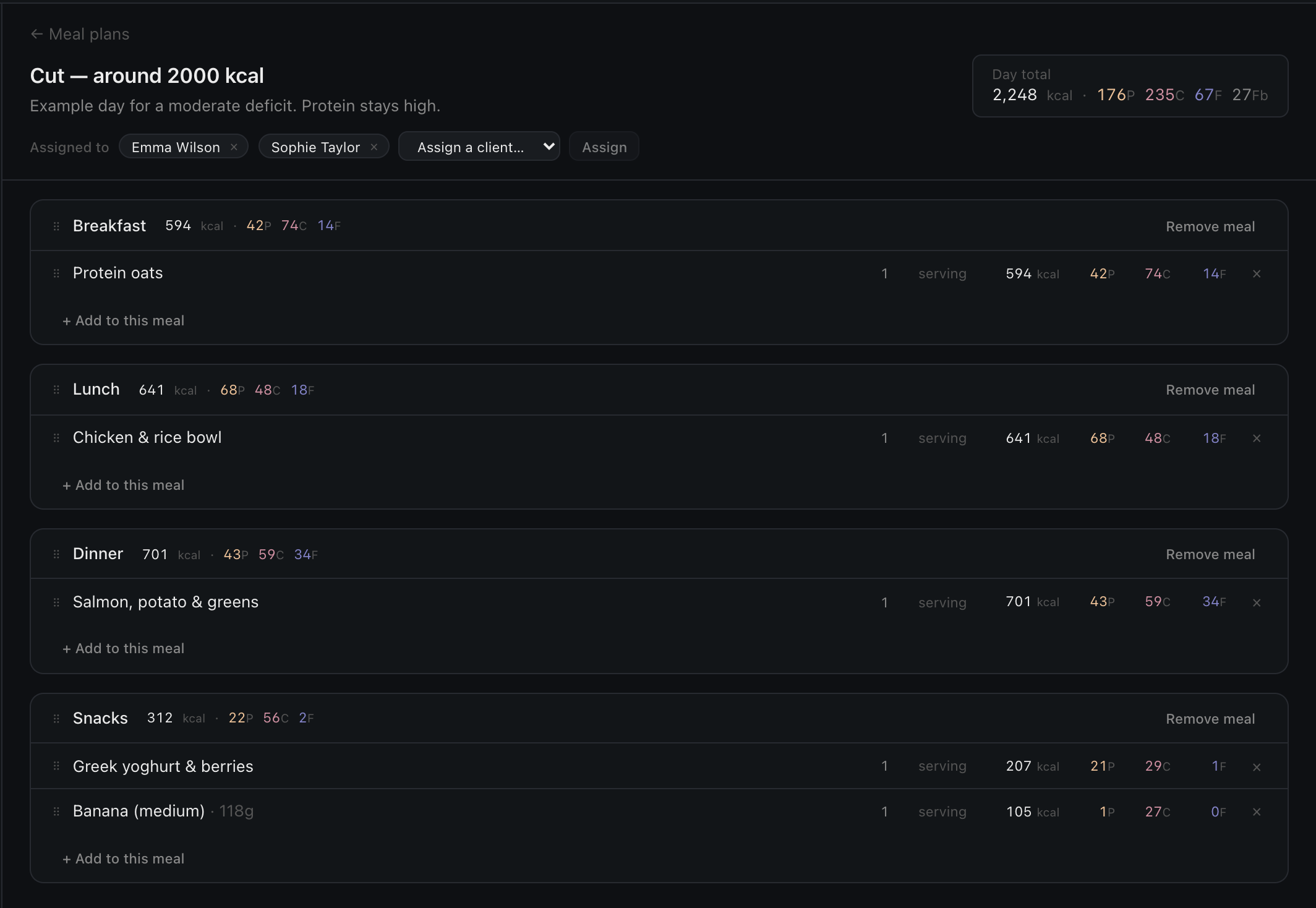
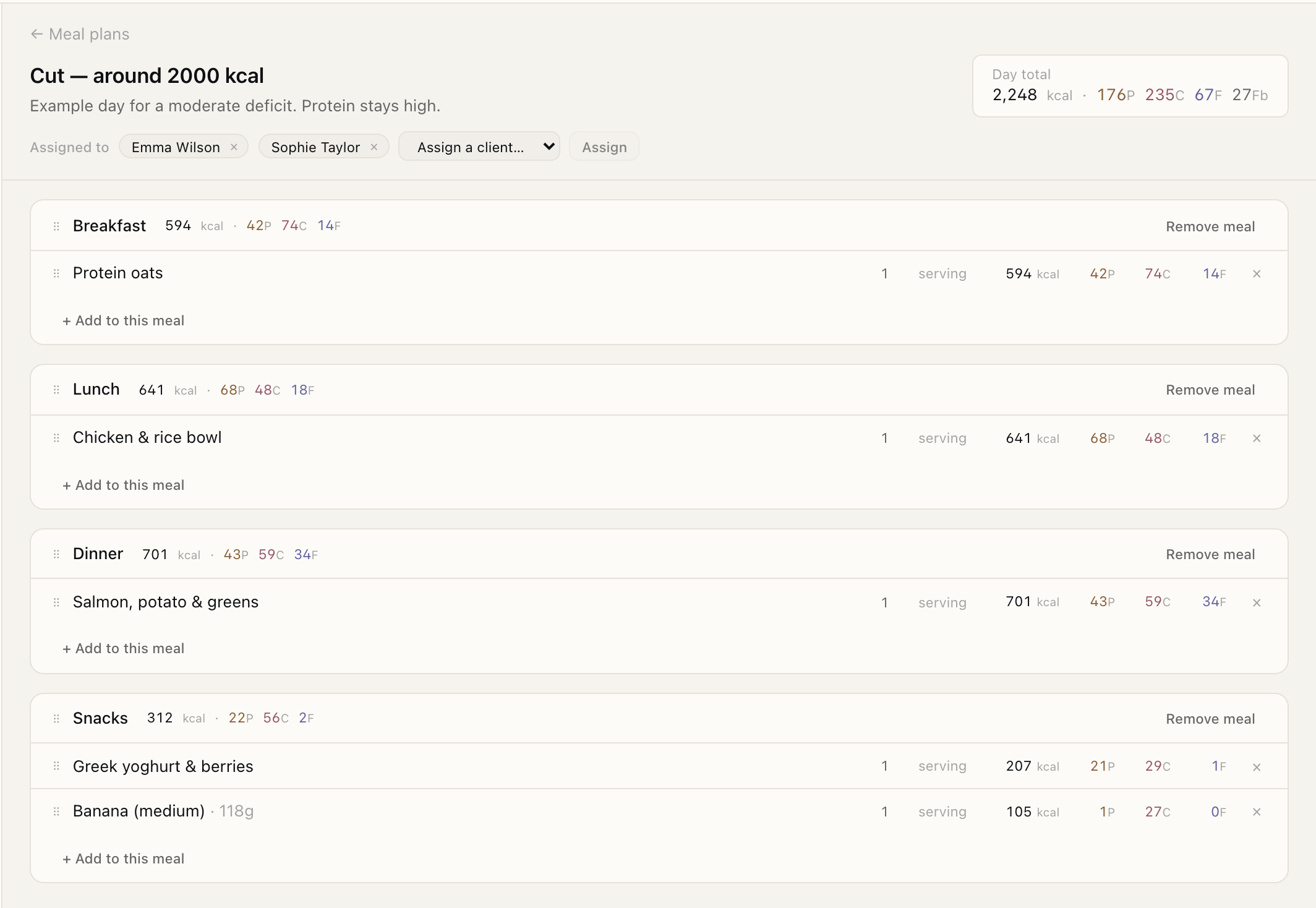
Section titled “4. Build a meal plan and assign it”A meal plan is one example day: recipes and foods slotted into meals you name. Under Nutrition → Meal plans, choose New meal plan, name it, and choose Create and add recipes. A new plan starts with Meal 1 to Meal 4, the same numbers your client logs under; rename any of them, or use + Add a meal for another (it suggests the next number, or type your own, e.g. “Pre-training”). Then + Add to this meal to add From a recipe or A single food. The day total updates as you go.
To give your client a choice for a meal, such as oats or eggs for Meal 1, choose Add option on the meal. Each option is its own group with its own total, and your client eats one of them. Click an option’s name to rename it, or leave it as “Option 2”. A meal with options shows its calories as a range, from the lightest option to the heaviest, and so does the day total.
Unlike a recipe, a plan is private until you assign it. Assign it to a client from the plan itself, or from the client’s Nutrition tab under Meal plans: pick the plan and choose Assign. Remove takes it away from that client again.
5. Review the day
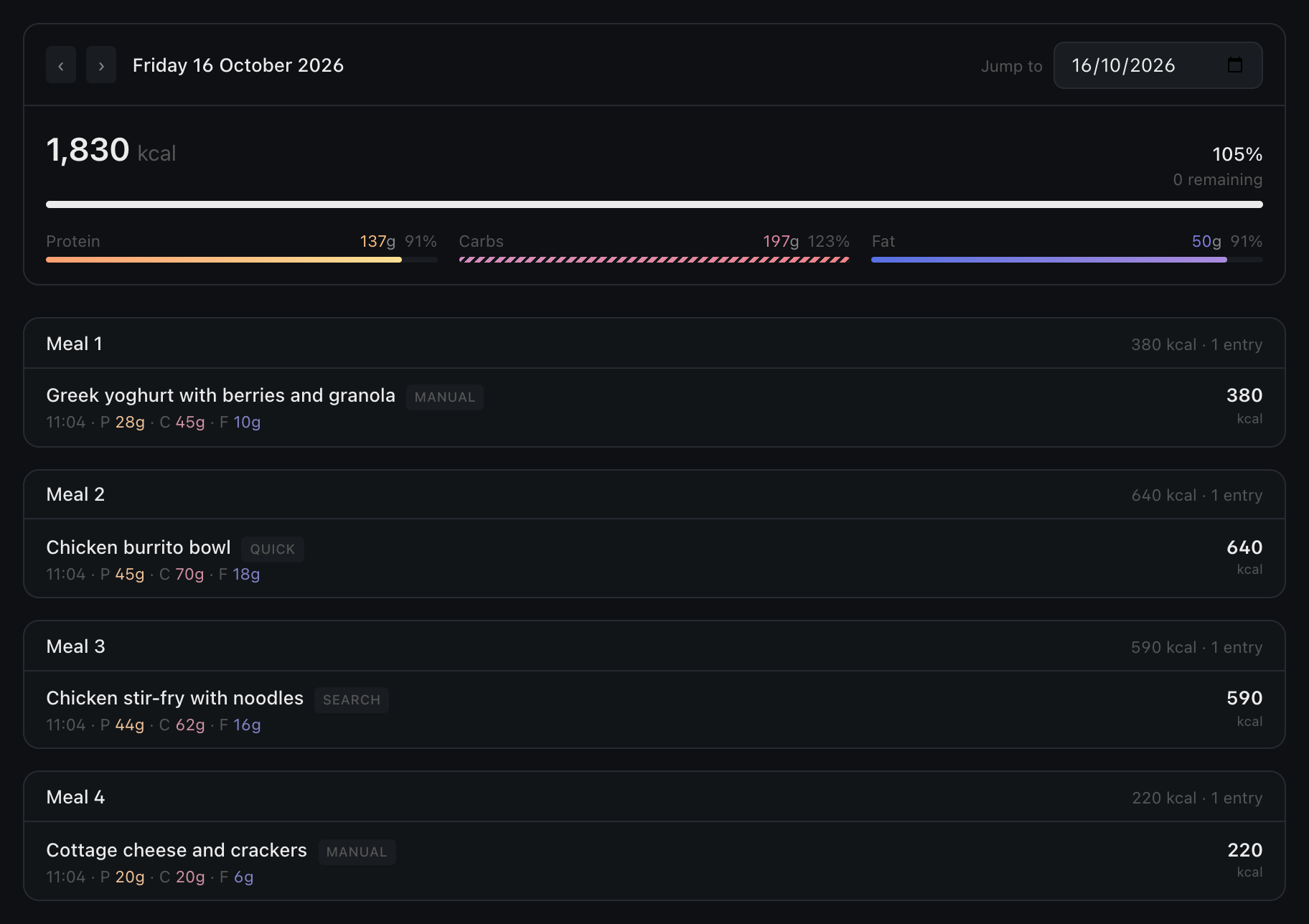
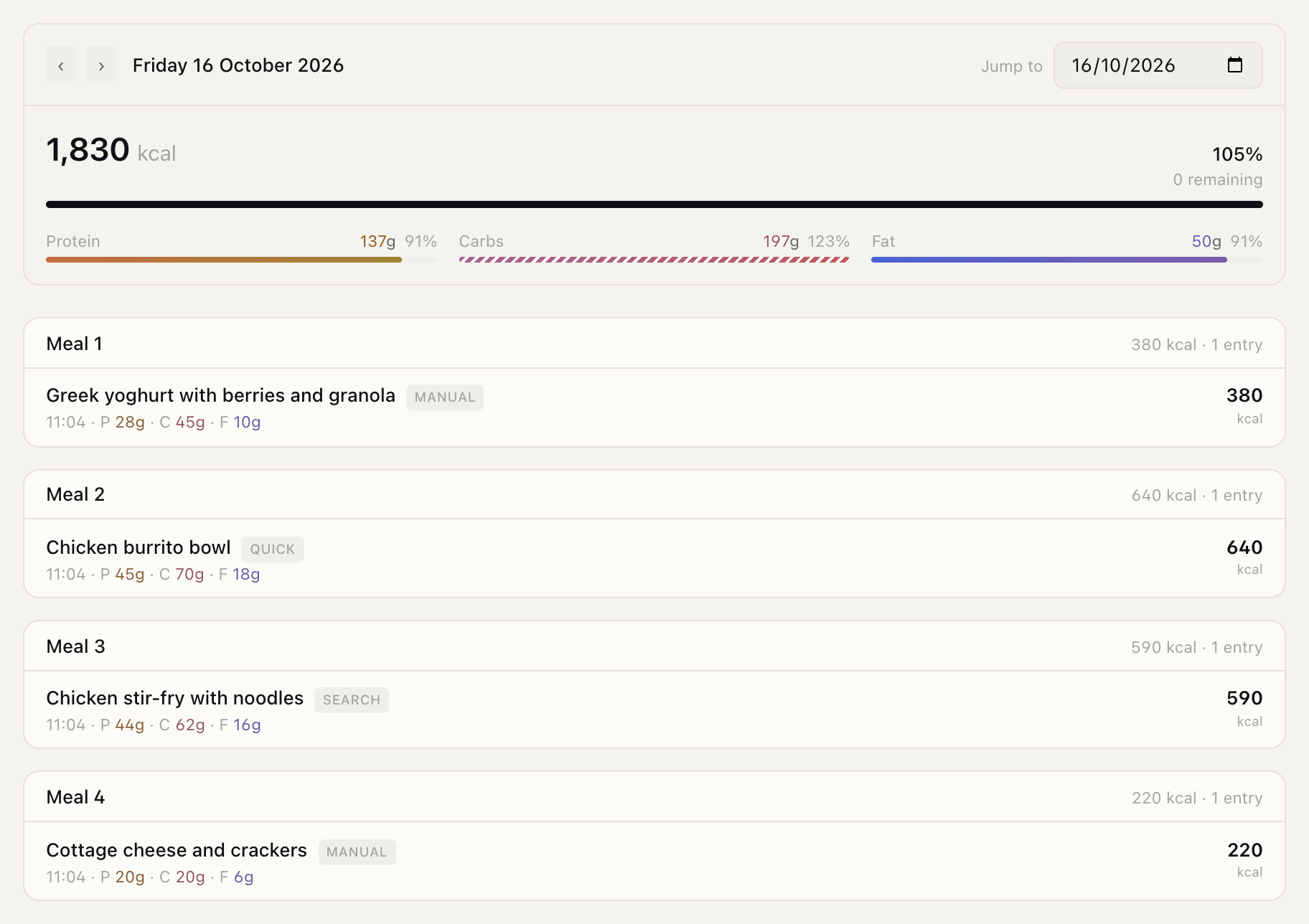
Section titled “5. Review the day”The food log shows one day at a time. Move between days with the ‹ › arrows, Today, or Jump to a date. For each day you’ll see total calories against target (with the percentage and what’s remaining), a bar per macro, and entries grouped by meal — Meal 1, Meal 2 and so on, in the order your client filed them in their app. Anything not filed under a meal is listed under Other. A recipe or a saved meal the client logged shows as one item, with what went into it underneath.
If your client has saved meals of their own — a usual breakfast they log again in one tap — they’re listed under Their saved meals, with what’s in each and its calories and macros. Only your client can change them.
6. Know where entries come from
Section titled “6. Know where entries come from”Your client logs their food in their app — by searching a food database or scanning a barcode. Each entry here is tagged with how it was added, so you can see at a glance what was searched, scanned, entered by hand, quick-added, or logged from a recipe or one of their saved meals. Settings → Data sources lists the food databases behind the search.
What you’ll be able to do
Section titled “What you’ll be able to do”- Choose how each client’s nutrition is tracked
- Set and update calorie and macro targets
- Build recipes and meal plans, and assign plans to clients
- Review a client’s daily log against their targets