

Build a program
Programs in Stem are reusable templates. You build the structure once — weeks, days, exercises, sets — and then assign it to as many clients as you like. This guide covers creating a template, filling in its weeks, and keeping your exercise library in shape.
Before you begin
Section titled “Before you begin”- A rough plan of the block — how many weeks it runs, which days you train, and the main lifts. You can change any of it as you go.
1. Create the template
Section titled “1. Create the template”Open Training (Programs is the first of its two tabs) and choose New program. Give it a Name and, if you like, a Description, the number of Weeks (4 if you leave it blank), and Days / week, which creates that many empty days in every week. Choose Create, then open the new program from the list.
2. Build a week
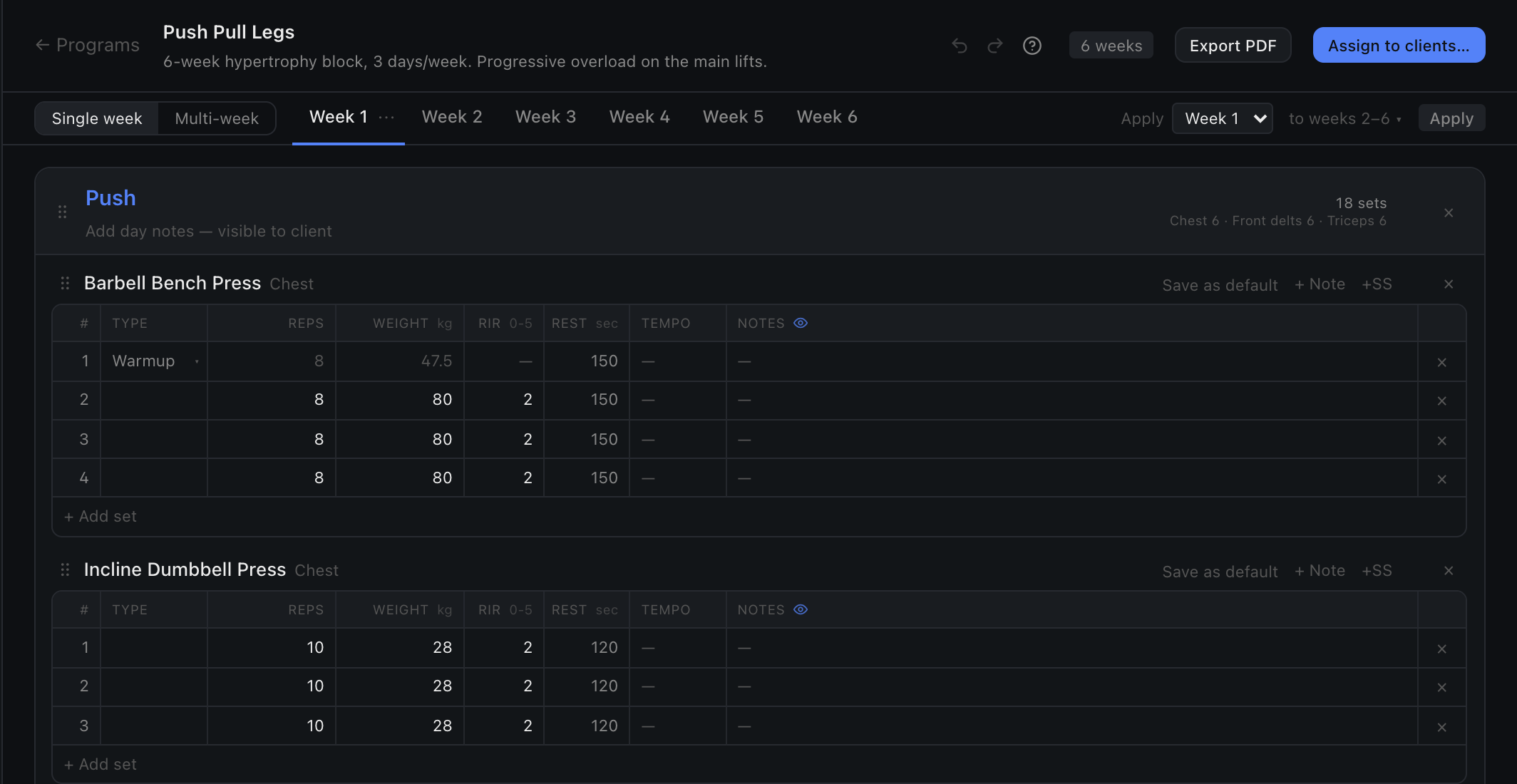
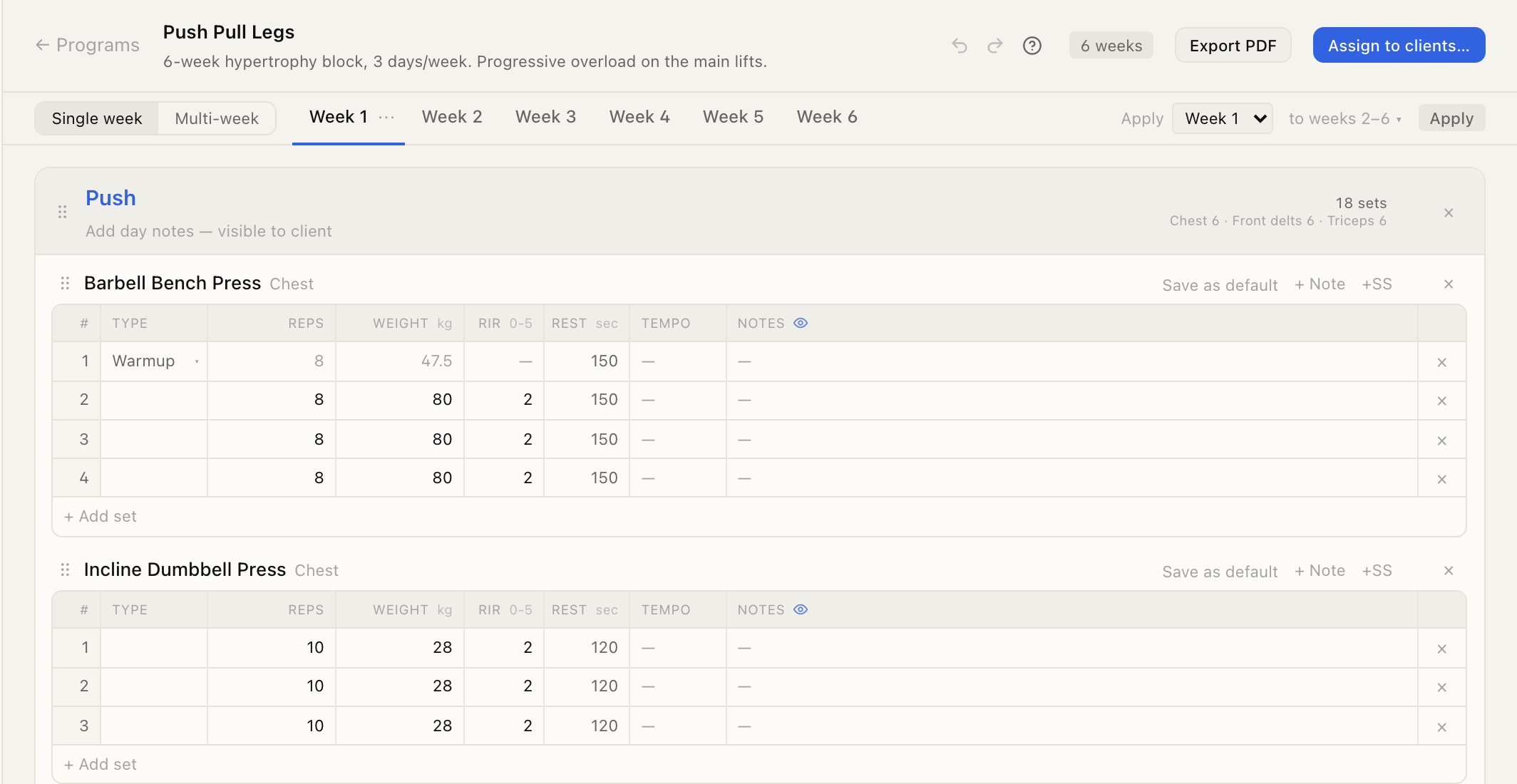
Section titled “2. Build a week”With Single week selected, pick a week tab and choose + Add day to add a training day (name it, e.g. “Push”). Each day also has a line for notes your client will see.
Inside a day, choose + Add exercise and search your exercise library — if what you want isn’t there, + Create adds it as you type. Before you type, it suggests exercises from your recent programs, in this order: ones from your days with the same name (a Push day suggests from your other Push days), ones you often program alongside what the day already holds, more for the muscles the day trains, then your most used. One click adds one to that day, and the search stays open for the next, so you can fill a day in one go; press Esc or × when you’re done. Until you’ve built a program of your own, the suggestions come from Stem’s starter templates. Fill in each exercise’s set grid — reps, load, effort (RIR or RPE), rest, tempo and notes — and Add set for more sets. Drag the handle (⠿) to reorder exercises, or whole days.
Picked the wrong exercise? Click its name to swap it for another; the sets and their values stay.
3. Link supersets
Section titled “3. Link supersets”To pair two exercises as a superset, choose +SS on the first, then Pair on the second. They get a shared badge. −SS unlinks them again.
4. Copy a week across the block
Section titled “4. Copy a week across the block”Built one week you want repeated? Use Apply in the week bar: pick the week to copy, then the weeks to copy it to — every other week, unless you narrow the range. Under Carry over, untick any field you would rather write fresh each week. Exercises and set counts always come across, and an unticked field lands blank. Confirm, then tweak individual weeks from there.
To add a week instead of overwriting one, right-click a week’s tab (or choose ⋯ on the open tab) and pick Duplicate week. The copy goes in straight after that week, and every later week moves back by one. On a client’s program, Stem won’t duplicate a week if the client has already trained a later week, because that would renumber their history.
To have a client do the same day twice, right-click the day (or choose ⋯ on it) and pick Duplicate day. The copy goes in straight after the original — in every week that has that day, each week with its own sets and loads — and is named with a “(2)” so you can tell them apart. On a client’s program, weeks they’ve already trained are left as they were.
5. Shape the whole block
Section titled “5. Shape the whole block”Switch to Multi-week to see every week side by side: each week is a column of day boxes, with the exercises in order and the day’s total sets at the top. The tabs above choose what sits beside each exercise — Sets, Reps, Weight or your effort measure (RIR or RPE). Where an exercise’s sets differ, you see a range, such as “6–8 reps”.
Click a value to change it; typing a new value applies it to every set of that exercise in that week. In any week but the last, Stem then asks whether the change is for just this week or for the weeks to the end of the block — so moving Seated Row from 3 to 4 sets from week 3 onward is one edit. Use → and ← to step the same exercise through the weeks, so week 8 can end on 5 sets while earlier weeks stay at 4.
Each box also has + Add exercise, and ✕ beside an exercise removes it — from that week or from there to the end of the block. Switch back to Single week to reorder exercises, add days, link supersets, or set individual sets differently.
6. Export it as a PDF
Section titled “6. Export it as a PDF”To hand a program over on paper, or as a file, choose Export PDF at the top of the program, beside Assign to clients…. Pick a layout:
- Day sheets — each day as a table of exercises, sets, reps, load and effort, on portrait pages. Each week starts on a new page.
- Week at a glance — one landscape page a week, its days side by side, each exercise in one line. Good for pinning on a wall or handing in a whole week at once.
- Progression — each exercise across the weeks, four weeks to a landscape page, so you can see how the block builds.
Choose the weeks to include with From week and to. Then tick what goes in: a Cover page with the overview and the list of days, Coach notes, Rest and tempo, Intensity (RIR or RPE, whichever the program uses) and Warm-up sets. Warm-up sets are left out unless you tick them. For day sheets, Space to log adds a blank column for writing in at the gym. Weekly volume adds a last page counting the working sets each muscle gets in each week: an exercise’s main muscles count a full set, muscles that assist count half, and warm-ups don’t count.
Choose Open PDF. The PDF opens in a new tab with your browser’s print dialog. Pick Save as PDF as the destination to download it, or a printer to print it. If you close the dialog, Print or save PDF at the top of the tab opens it again. Exercises are lettered in order, and supersets share a letter (B1, B2), as on a gym sheet.
7. Keep your exercise library in shape
Section titled “7. Keep your exercise library in shape”The Exercises tab is your library. Search it or filter by muscle group, and choose New exercise to add your own. Open any exercise to set its defaults — sets, reps, rest, effort and tempo, plus the time, distance or load for exercises measured that way (a plank’s hold, a sled’s metres) — so it comes pre-filled whenever you add it to a program. Each change saves as soon as you leave the field, so there’s nothing to save — choose Done to close it. Built-in exercises are shared by every coach, but you can edit one in place: its video link, instructions, equipment, movement and muscles. Your version is seen by you and your clients only, every program that already uses it picks it up, and Reset to Stem’s beside each field puts Stem’s back. Only its name and what it’s measured in stay Stem’s — choose Duplicate to make a different exercise.
What you’ll be able to do
Section titled “What you’ll be able to do”- Create a multi-week program template
- Build days and exercises, and link supersets
- Copy a week across some or all of the block
- Shape the whole block — sets, reps, load and effort across every week — before assigning it
- Export a program as a PDF to print or send
- Keep your exercise library and its defaults up to date