

Payments & billing
Stem handles two money flows: you pay Stem to run your business on it, and your clients pay you for coaching. This guide covers both — setting up, putting clients on a plan, changing what they pay, and what happens to a client’s billing when their status changes.
Before you begin
Section titled “Before you begin”- Your Stem account. Client billing opens up while your trial or subscription is current.
- A Stripe account, or a few minutes to create one. Client payments run through Stripe, and you set that up from inside Stem.
1. Your Stem subscription
Section titled “1. Your Stem subscription”You start on a 14-day free trial when you create your account. Stripe asks for a card when you sign up, but nothing is charged until the trial ends — then it carries on as your Stem subscription.
After the trial, Stem bills you once a month, on the same date each month. The bill is:
- 0.5% of what your clients paid you through Stem that month, after any refunds;
- plus A$5 for each client you bill outside Stem (below);
- never more than A$250 for the two together, however big your business gets;
- and never less than A$25.
| Your month | Your bill |
|---|---|
| 20 clients paying A$200 through Stem (A$4,000) | A$25 — 0.5% is A$20, so the minimum applies |
| 60 clients paying A$250 through Stem (A$15,000) | A$75 |
| A$4,000 through Stem, and 3 clients you bill elsewhere | A$35 — A$20 plus 3 × A$5 |
| 60 clients, all billed outside Stem | A$250 — 60 × A$5 is A$300, and A$250 is the most you pay |
Settings → Billing shows this month so far: what has come in through Stem, each client billed outside Stem and why, and the total. It also shows your status and when your trial ends. Once your subscription is active, Manage subscription takes you to Stripe to update your card, see invoices, or cancel. Card details never touch Stem.
If you cancel, your last month is billed when the subscription ends.
The full rules, with more worked examples, are in the Coach Terms of Service.
Clients billed outside Stem. A client counts once they’ve been Active for more than 30 days and Stem isn’t collecting at least A$20 a month from them — they have no plan through Stem, their plan is under A$20 a month, or its payments are paused. A client whose card payment has failed still counts as paying through Stem.
Moving in from another tool. For your first three months after the trial, no client counts as billed outside Stem, so you can bring your whole roster across and move their payments over at your own pace. Settings → Billing shows the date it ends, and we email you about a week before with the clients who would then count. It happens once per coaching business.
Clients you coach for free. Family, a friend, a client you don’t charge: open their Summary and choose Mark free under Your Stem bill. You can mark up to three, and they never count as billed outside Stem. Stop marking free undoes it.
When your organisation pays for Stem. If you coach under a studio or team that pays for its coaches’ Stem accounts, the Stem team sets that up for you — there is nothing to do on your side. Settings → Billing then shows Billed to your organisation instead of a card:
- Your bill is still worked out from your own clients, exactly as above, and it goes on your organisation’s monthly invoice once your month ends. You are not charged.
- If you had your own subscription, it carries on to the end of the month you’ve paid for and then stops by itself; your organisation pays from that day. You are never charged twice.
- If your organisation’s payment fails, Stem is locked for you until they pay — the same as when a coach’s own card fails. Only your organisation can fix it, and whoever handles their billing is emailed a link to pay.
- If you leave the organisation, it pays to the end of your current month. After that you have 14 days of full access to set up your own subscription from Settings → Billing.
2. Connect Stripe to get paid
Section titled “2. Connect Stripe to get paid”On the same page, Getting paid by clients is where you connect the Stripe account your clients’ payments go to. Choose Connect Stripe and follow Stripe’s steps. When Stripe has confirmed your account, the card shows Ready.
It’s your own Stripe account, with the full Stripe Dashboard. Stripe will ask you to:
- create a Stripe login — a password or your Google account — which is how you sign in to your Stripe Dashboard later;
- confirm who you are: your details, your bank account, and a photo ID with a quick selfie.
Stripe charges its own fees to that account directly; Stem takes nothing from a client’s payment.
If you stop part-way, it shows Incomplete — choose Finish Stripe setup to pick up where you left off.
When your account is ready, Getting paid by clients also shows Client payments and Open Stripe Dashboard.
3. Create your offerings
Section titled “3. Create your offerings”An offering is a name and a price — say, “Online Coaching, $199/month” — and it’s what a client checks out on. Open Settings → Services and choose New offering. Give it a Name (your client sees this at checkout), an optional Description, a Price, and how it’s billed: Weekly, Fortnightly, Monthly, Quarterly or Yearly. Then choose Create offering.
4. Put a client on a plan
Section titled “4. Put a client on a plan”Open the client’s Summary. On the Billing card, pick an offering and choose Put on a plan. Stem gives you a short link for that client. Choose Email and Stem emails it to the address on their profile, or choose Copy payment link and send it however you usually talk.
They pay Stripe directly, by card or — for an offering priced in Australian dollars — straight from their Australian bank account. When both are possible, the link first asks them How would you like to pay?, with Bank debit first and marked Recommended, because it costs you less (step 7); card is one tap below it. They then enter their details on a Stripe page for the way they chose. Their plan appears on the Billing card as soon as they finish checkout. From then on, Stem charges the card or bank account they saved, through your Stripe account, at the start of each billing period.
A card payment goes through straight away. A bank payment takes up to 3 business days to clear, and until it does the Billing card shows Processing. If their bank refuses the payment, nothing is charged: the card shows Payment failed and ends that plan, so you can choose Send a new payment link and they can try again by card or from a different account.
Start a plan on a later date
Section titled “Start a plan on a later date”If a client is still paying you through another system until a certain date, choose that date in First payment before you choose Put on a plan (in the coach app, tap First payment when you choose the plan). Your client saves their card or bank account now and nothing is charged before that date; their first payment is taken on it, and then every period as the plan says. The link works until the first payment date instead of 24 hours, and the Billing card shows Starts and the date until then. Leave First payment blank to charge when they sign up.
Moving clients over from your own Stripe account? Set the first payment date to the day each client’s current payment period ends there, and stop their payments in your old account from that day, so nobody is charged twice. Stem can also copy the cards your clients already saved in your Stripe account, so they don’t have to enter them again: contact us before you start and we’ll walk you through it.
5. When a client needs to change their card
Section titled “5. When a client needs to change their card”Clients change their own card or bank account in the Stem app, under Profile → Plan and payments. They can also see what they pay, when their next payment is due, and their past receipts there.
If a client isn’t in the app yet, or asks you to do it, open their Billing card and choose Send a link to update payment details, then choose Email or copy the link and send it. It opens a secure Stripe page where they enter a new card or bank account — the link charges nothing by itself, and if a payment was overdue it is paid with the new details as soon as they save them.
6. Know what reaches you
Section titled “6. Know what reaches you”A client pays you directly for their coaching — there’s no middle step where money sits with Stem. Your client is only ever charged the price you set. Stripe’s processing fee is deducted from that payment before it reaches your balance — nothing is added on top of what your client pays, and Stem takes nothing from it. Your Stem bill (step 1) is separate.
Settings → Payments lists every payment your clients have made through Stem. Open one to see its details or refund it, in full or in part. To respond to a dispute or manage your payouts, use your Stripe Dashboard — Open Stripe Dashboard on the Billing tab takes you there.
In your Stripe Dashboard, a client’s plan shows as one payment per billing period, not as a subscription or invoices. Manage the plan in Stem — its price, pauses and cancellation — rather than in Stripe. If you cancel a payment that’s failing in Stripe, Stem treats that period as not charged.
Stem emails your client a receipt for every payment. Add your ABN under Tax details in Settings → Billing, and tick I’m registered for GST if you are, and those receipts become tax invoices showing your ABN and the GST included in your price.
If a later card payment fails, Stem tries it again over the following two weeks — up to 8 more times, the way Stripe does — and emails your client and tells you. Their Billing card shows Payment failed. Your client can fix it themselves in the Stem app, under Profile → Plan and payments → Update payment method — the overdue payment is then tried again straight away with the new details. Their next billing period isn’t charged on top while one is overdue; it’s billed once the overdue payment goes through.
Some cards can’t be retried at all — a card reported lost or stolen, for example — so Stem waits for your client to update their card instead, and stops billing them after two weeks if they don’t.
Some banks ask your client to confirm a payment before it goes through, and those can’t be retried either. Stem emails your client a link to confirm it and tells you, and their card shows Payment failed until they do. If it isn’t confirmed within 7 days, Stem stops billing that client, as below.
If the retries also fail — or a bank payment is refused and isn’t retried — Stem stops billing that client and tells you. Their card shows Payments stopped and the client appears under Needs attention. Updating their card won’t restart it and Stem won’t try that payment again: choose Send a new payment link to start a new plan.
A refused bank payment isn’t retried: Stripe charges you a fee for each one that’s refused, so trying again is rarely worth it.
A bank payment costs you less in Stripe fees than a card, which matters most on larger plans — but its money arrives up to 3 business days later. A client counts towards your monthly revenue once their first payment has cleared.
7. Move clients to bank debit
Section titled “7. Move clients to bank debit”Every payment costs you a Stripe fee, and bank debit’s is smaller: an Australian card is 1.65% + 30c, a bank debit 1% + 30c, capped at $3.50.
| Plan | By card | By bank debit | You save |
|---|---|---|---|
| $100 a month | $1.95 | $1.30 | $0.65 |
| $200 a month | $3.60 | $2.30 | $1.30 |
| $400 a month | $6.90 | $3.50 | $3.40 |
Settings → Payments shows how many of your clients pay by card and about how much moving them to bank debit would save you each month. Choose Ask to switch beside a client, or Ask all to email every one of them a link to set up bank debit with Stripe. A client’s Billing card shows what their payments cost you and, for a card client, Ask to switch to bank debit. Clients who pay by card are also asked, once, on Plan and payments in the Stem app; nothing about their plan changes except how it’s paid.
Bank debit discount. In Settings → Billing you can choose Turn on to give every client who pays by bank debit 0.5% off each payment — about $1 off a $200 plan. It’s less than you save in fees, so you still come out ahead. It applies to every plan Stem charges, from each client’s next payment; a client who switches to card pays the full price from their next payment, and turning it off ends it the same way. Their receipt shows the price and the discount.
Before you nudge everyone, know how bank debit behaves:
- It settles slowly. Each payment takes 2–3 business days to confirm, so its money reaches you later than a card’s.
- A failed payment stops the plan. A refused bank payment isn’t retried (Stripe charges you $2.50 for each one), so Stem stops billing that client and you send them a new payment link (step 6).
- Disputes stay open for 7 years. A client can dispute a bank debit with their bank for up to 7 years, “no questions asked”, and you can’t contest it — Stripe charges $2.50 for each one. A card dispute is open for about 120 days and can be contested.
8. Change what a client pays
Section titled “8. Change what a client pays”On the client’s Billing card, choose Change price, enter the new price and how often they’re billed, then choose Schedule change.
- Nothing is charged today. They keep paying their current price until their next billing date, and the new amount starts from there — so your monthly revenue won’t move until then.
- The client is emailed about the change.
- Changed your mind? Cancel scheduled change keeps them on their current price, and they’re emailed to say it’s off.
Changing an offering’s price in Services only affects new signups — everyone already on it keeps the price they signed up at. To move them as well, choose Reprice a roster in Services: change everyone on an offering by a percentage, to one price, or to a rhythm (how often they’re billed). You’ll see each client’s before and after and the date it takes effect, and can untick anyone you want to leave alone, before you Review and schedule.
9. Pause or cancel a client’s billing
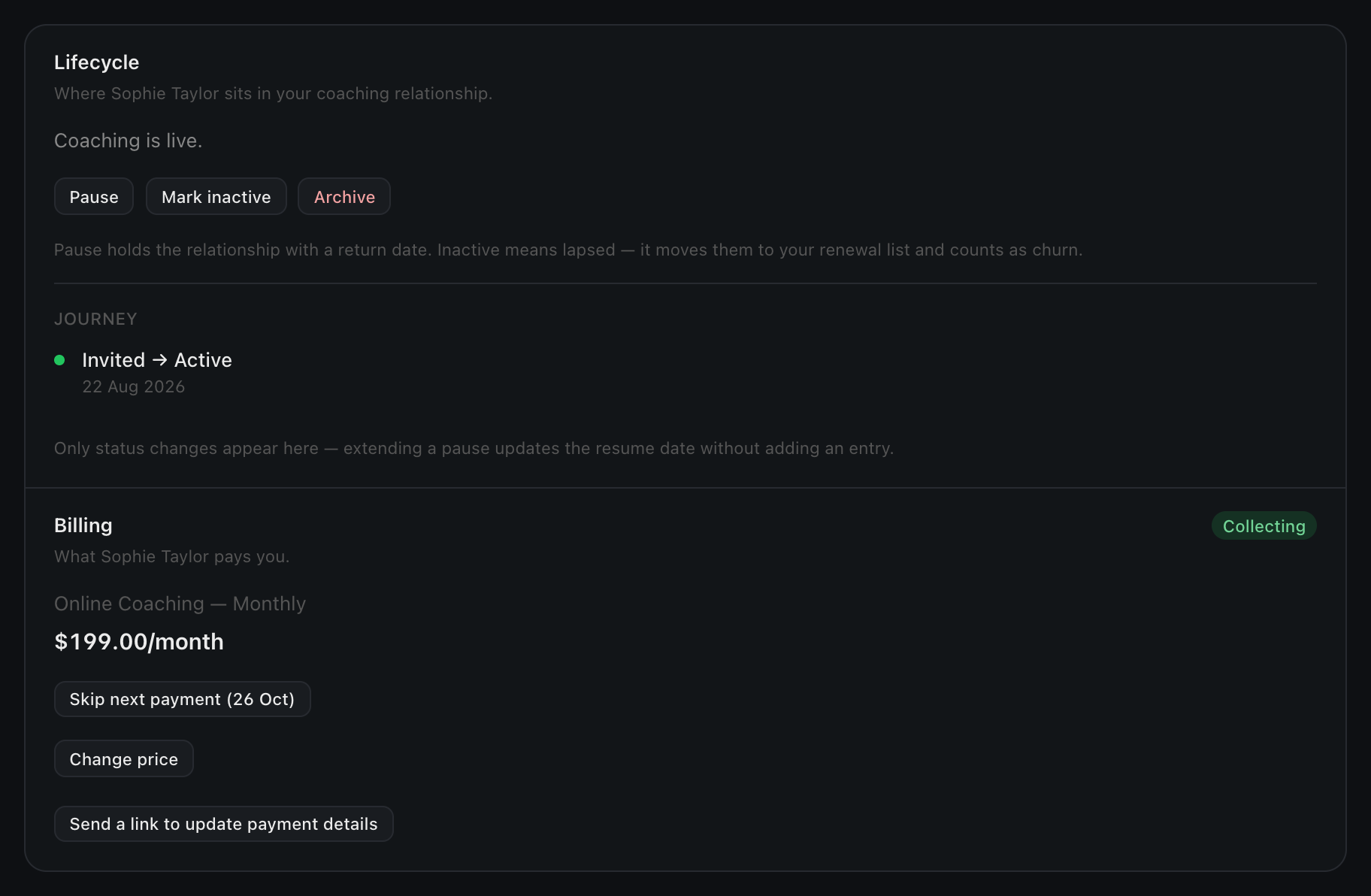
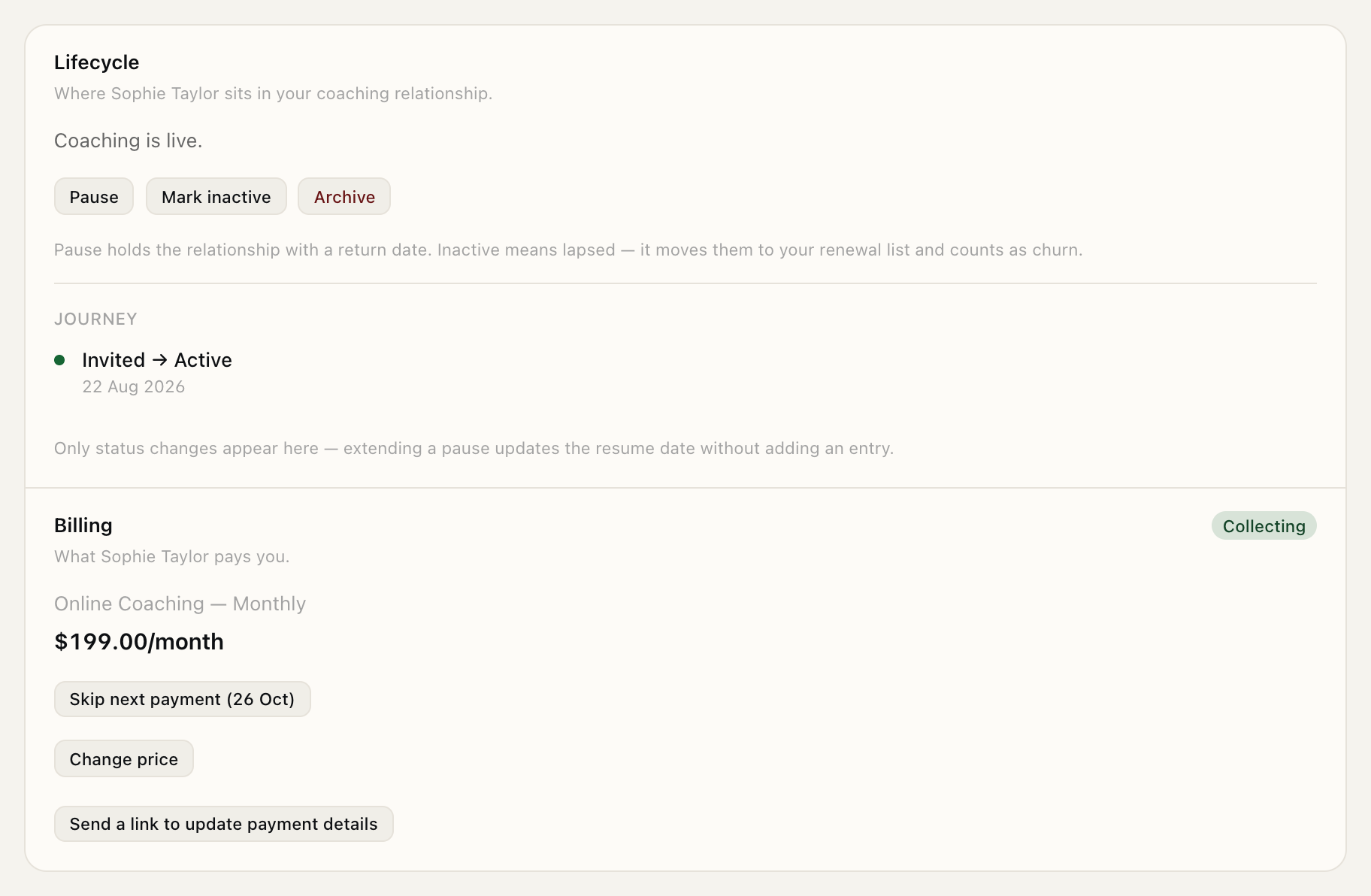
Section titled “9. Pause or cancel a client’s billing”A client’s plan follows their status, so you pause or cancel billing by changing the status on their Summary tab:
| Move them to | Their plan |
|---|---|
| Paused | Suspended. They aren’t charged while paused, and billing doesn’t restart until you resume them. |
| Inactive or Archived | Cancels at the end of the current billing period. |
| Active | Collects again. This lifts a pause, and withdraws a cancellation that hasn’t taken effect yet. |
Once a cancelled plan has ended, billing that client again means putting them on a plan again. Manage your roster walks through each move.
Skip, reduce or refund one payment
Section titled “Skip, reduce or refund one payment”For a client who misses a week, there’s no need to pause them. On the Billing card of their Summary:
- Skip next payment lets that payment pass with nothing charged; billing carries on as normal after it. The card then shows when charging resumes, and Undo takes the skip back until just before the payment is due.
- Take an amount off reduces their next payment only, say $50 off for a missed session. Add a note if you like: it shows on their receipt beside the adjustment. The card shows the amount until the payment is taken, and Undo removes it. Setting a new amount replaces the old one. It must leave at least $0.50 to pay; to charge nothing, skip the payment instead. If you’ve skipped the next payment, or their plan is paused, the amount comes off the first payment that’s taken.
- Refund this week (or month) gives back what they paid for the period they’re in, after you confirm. Their plan carries on, and Stripe keeps its processing fee.
10. See your revenue
Section titled “10. See your revenue”Your dashboard shows the money side in its top row: Monthly recurring (your active subscriptions), Revenue this FY (the financial year so far, from 1 July) and Lifetime revenue (both from paid invoices, less refunds and disputes), and Avg. retention, how long clients stay with you on average.
Click either revenue tile to open Revenue: your net revenue as bars by week, month or financial year, with each period’s total in a table underneath. Pick a financial year to see it, and Export CSV downloads that year’s payments, refunds and disputes as a spreadsheet for your accountant: the date, the client, what they paid for, the price, any bank-debit discount, what was paid, what came back, the GST included when you are registered, and the receipt number. A refund or dispute counts on the day it happened, so a July refund of a June payment lowers July. Stripe’s fees are not taken off; they are in Stripe’s own Fees report.
What you’ll be able to do
Section titled “What you’ll be able to do”- Understand your trial, your monthly Stem bill, and manage your subscription
- Mark up to three clients free on your Stem bill
- Connect Stripe so clients can pay you
- See and refund your clients’ payments
- Create offerings and put clients on a plan
- Move card clients to bank debit, and give a bank-debit discount
- Change a client’s price, or reprice everyone on an offering
- Know what pausing, marking inactive, and archiving do to a client’s billing
- Read your revenue and retention on the dashboard