

Getting started
Stem is your coaching dashboard: clients, programs, nutrition, messages and payments in one place. This guide gets you signed in, oriented, and moving quickly. It takes about five minutes, and you can come back to the deeper guides whenever you want to go further.
Before you begin
Section titled “Before you begin”- A Stem account. Choose Sign up on the sign-in page, enter your name, email and a password, then start your 14-day free trial. Stripe asks for a card, but nothing is charged until the trial ends — see Payments & billing.
- A modern browser. Stem runs in Chrome, Safari, Edge or Firefox. Nothing to install.
1. Sign in
Section titled “1. Sign in”Go to your Stem sign-in page, enter your email and password, and choose Sign in.
Forgotten your password? Choose Forgot password? on the sign-in page, enter your email, and you’ll get a link to set a new one. The link is good for one hour; after you reset it, sign back in with the new password.
Stem follows your device’s light or dark setting. The sign-in page has a toggle to switch, and once you’re in you can set a theme and a colour palette from Settings → Account, or flip light and dark from the command palette (step 5).
2. Read your dashboard
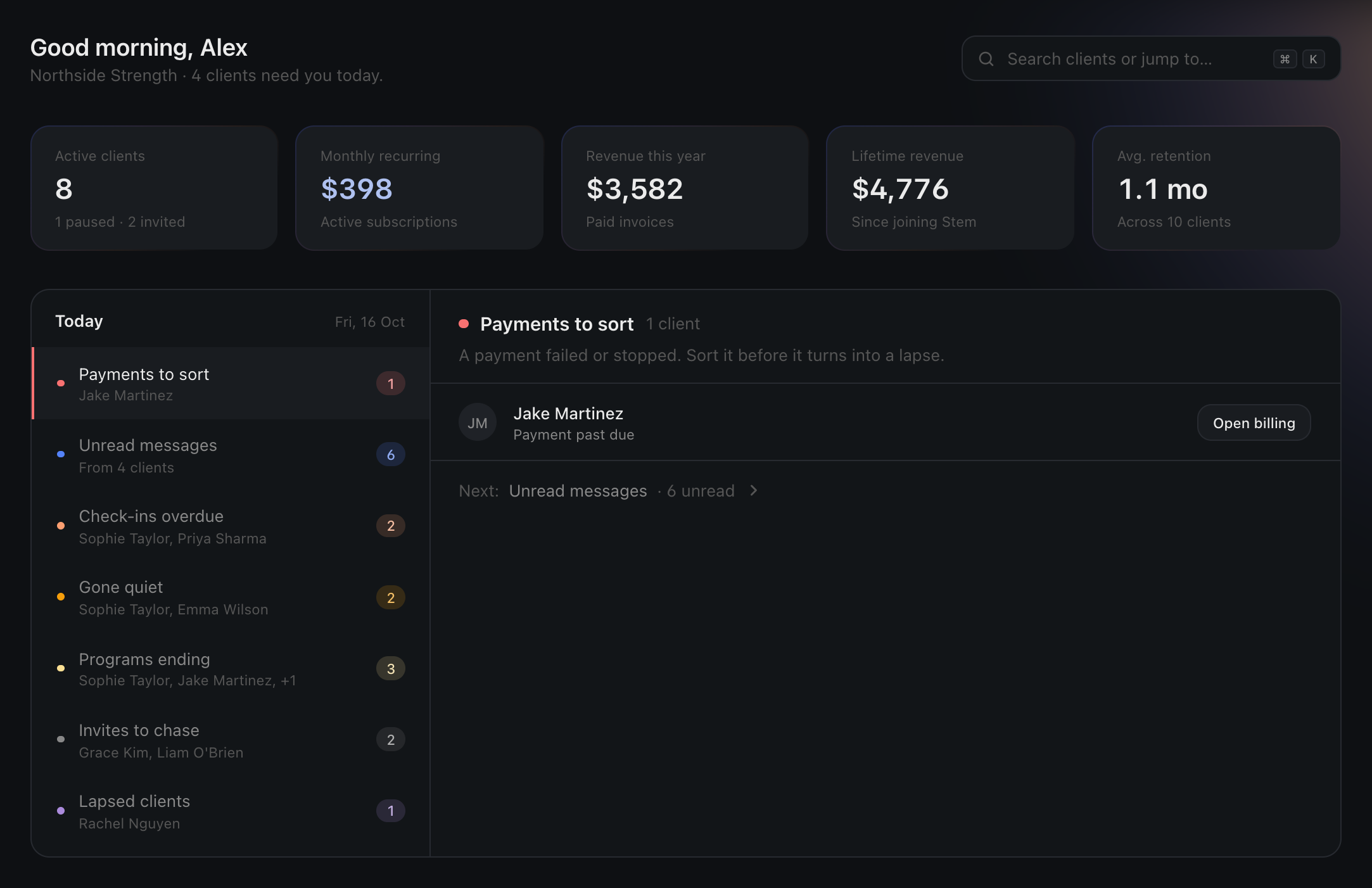
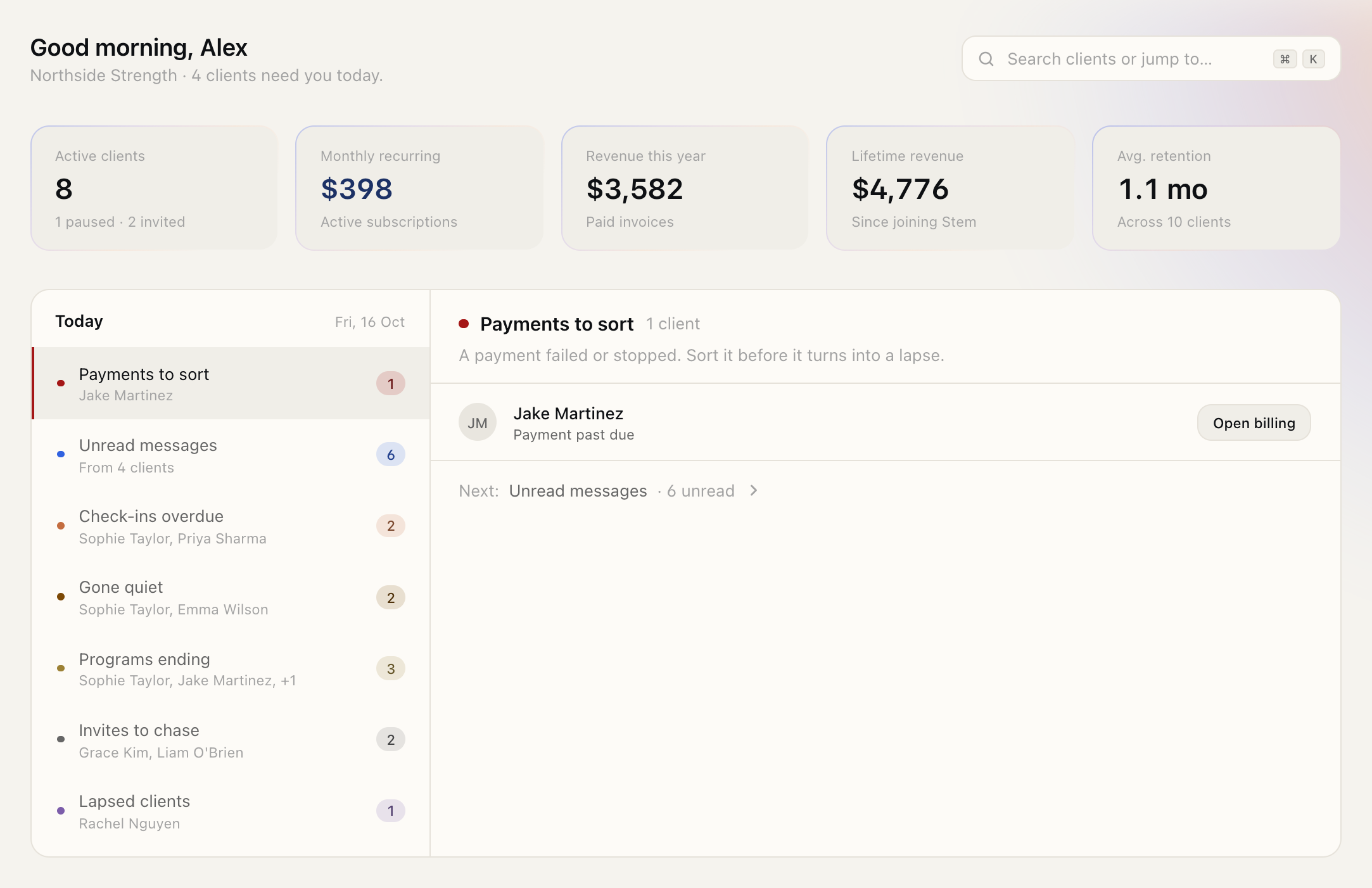
Section titled “2. Read your dashboard”You land on your dashboard. The line under the greeting says how many clients need you today, and Search clients or jump to… opens the command palette (step 5).
Five tiles give you the shape of the business: Active clients (with how many are paused or invited), Monthly recurring, Revenue this FY (since 1 July), Lifetime revenue and Avg. retention. The two revenue tiles open your revenue by week, month or year, and its CSV export.
Below them, Today is the work waiting on you, most urgent first: Payments to sort, Unread messages, Check-ins overdue, Goals to review, Gone quiet, Programs ending, Invites to chase, Lapsed clients, Milestones reached and Birthdays. Only tasks with someone in them are listed. Choose a task to see its clients on the right, each with a button that opens the screen where you deal with it, and Next moves on to the following task. When nothing is waiting, Today says you’re all caught up.
If you’re brand new and haven’t added anyone yet, the dashboard instead welcomes you and offers a single Add a client button to get started.
3. Find your way around the client list
Section titled “3. Find your way around the client list”Your client list runs down the left side and is always there. From the top you can:
- Search clients by name or email.
- Add a client with the + button.
- Filter by status (Active, Paused, Invited, Inactive) and sort by name or by who needs attention first.
Each client row shows their initials, name, current status, and two ambient signals so you can scan the whole roster at a glance: a coloured dot next to a name flags a client who needs attention (amber for needs attention, red for urgent, hover to see why), and a blue pill on the right shows unread messages. A small legend names these whenever they’re in play.
Across the top of every screen is the main bar: the Stem logo takes you back to your dashboard from anywhere, and on the right are Messages, Clients (everyone in one table, archived clients included), Training (your programs and exercise library), Nutrition (recipes and meal plans), Check-ins and Settings; your own account is under Settings → Account. When you open a client the list tucks itself out of the way to give you room; the button beside the logo hides or shows it whenever you like.
4. Open a client
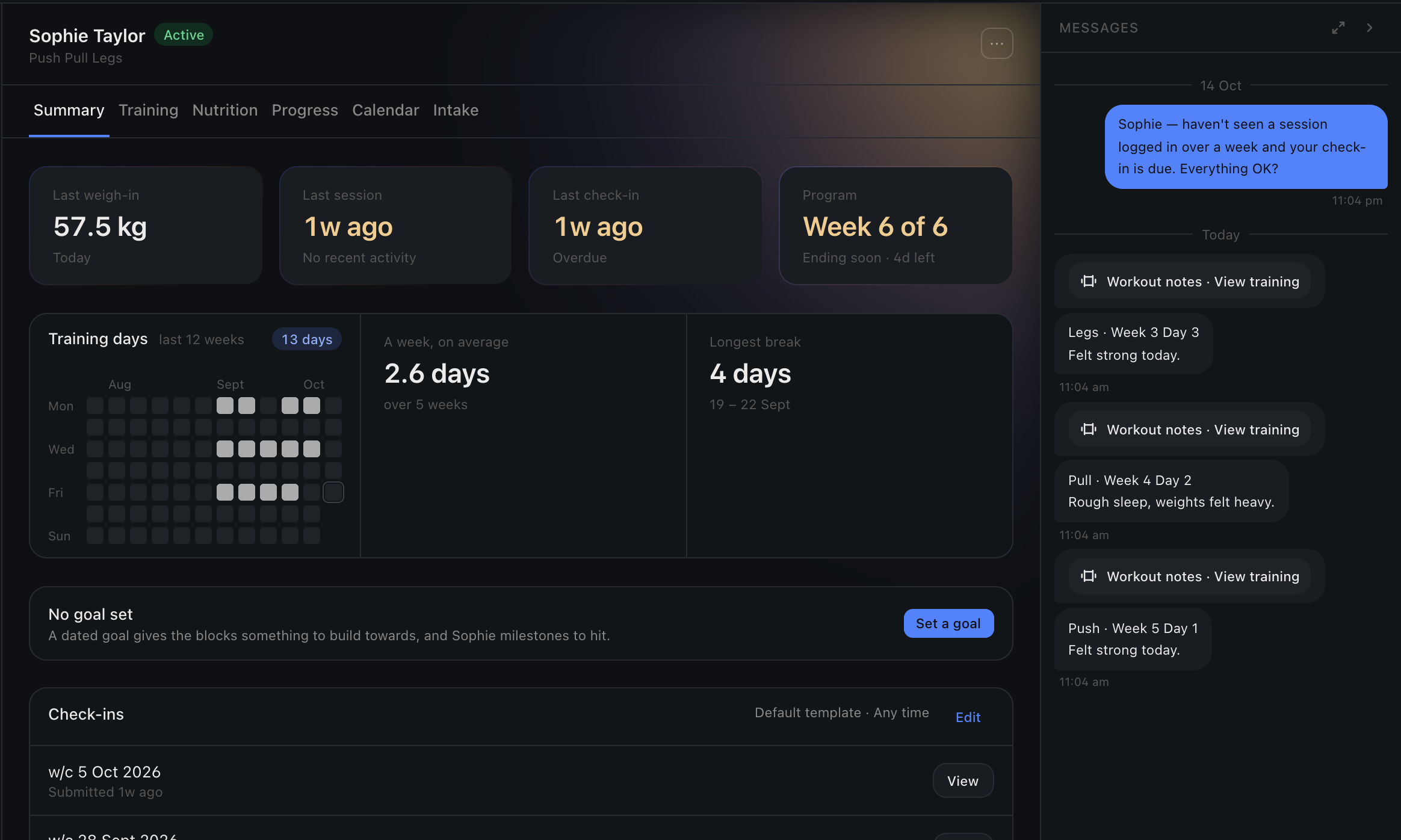
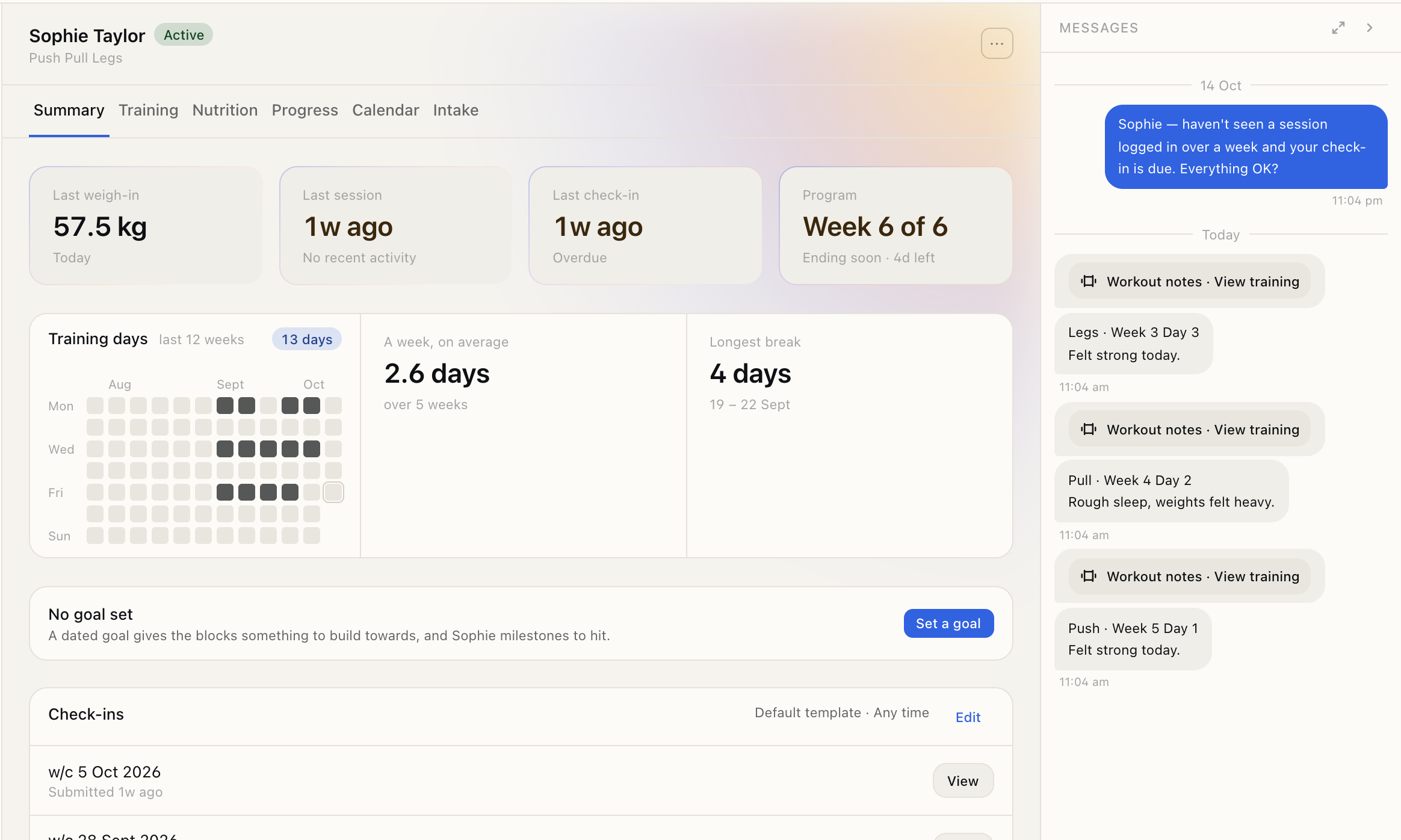
Section titled “4. Open a client”Click a client to open their record. Along the top are six tabs:
- Summary — the client at a glance: their goal, status and billing, and their check-ins.
- Training — their program, week by week.
- Nutrition — targets, meal plans and their food log.
- Progress — measurements, photos and charts.
- Calendar — their year: goals, every block, and the bodyweight trend.
- Intake — their answers to your intake form.
A message panel opens on the right so you can talk to the client without leaving their record. You can collapse it to reclaim space, or expand it when a conversation needs your full focus.
5. Move fast
Section titled “5. Move fast”The command palette is the one shortcut worth learning: press ⌘K (Mac) or Ctrl+K (Windows) to open it from anywhere, including while you are typing in a field. Start typing to jump straight to a client, hop to any page, or run an action like adding a client or switching themes. The ⌘K button inside the client search box opens the same thing if you would rather click.
The training grid works like a spreadsheet, so the keys you already use there work here. Click a cell and start typing to replace what is in it, or press Enter (or double-click) to edit what is already there. Enter saves and moves down a set, Esc cancels, and the arrow keys move between cells — down past the last set of one exercise and into the next. Delete clears a cell. Drag across cells (or hold Shift with the arrows) to select a block, and ⌘C / ⌘V (Ctrl+C / Ctrl+V on Windows) copy and paste it, including to and from Google Sheets or Excel. Drag the small square on a selected cell up or down to copy it into the cells it covers. Made a mistake? ⌘Z (Ctrl+Z) undoes it — a whole paste or fill at once — and ⌘⇧Z (Ctrl+Y) redoes it; the two arrows beside the save status do the same. Tab moves from cell to cell too.
What you’ll be able to do
Section titled “What you’ll be able to do”- Create your account, sign in, and reset your password if you need to
- Read your dashboard and know where your business stands
- Search, filter and open any client
- Move around fast with the command palette